On this page
- 01The roles on a company page
- 02Adding an admin, step by step
- 03Why the button or the person does not show up
- 04Giving an agency or freelancer access
- 05Removing an admin or changing a role
- 06How to transfer a LinkedIn company page
- 07Showcase pages keep their own admins
- 08Your own profile next to the page
- 09What the right roles let you do next
To add an admin to a LinkedIn page, you need to be a super admin of that page. Open the super admin view, choose Settings and then Manage admins, click Add admin, search for the person by name and give them a role. After you save, they can start straight away. It takes a minute, as long as you know which role to give and why the button is sometimes missing.
That is where most small businesses get stuck. The page was set up years ago by an intern, a former marketing manager or the agency that built the old website. That person has left, and nobody else has the rights to change anything. Or the opposite: everyone in the team is a super admin, including the student who stayed for three months. This guide puts the roles side by side, walks through the steps and shows what to do when you have lost access yourself.
No page yet? Start with setting up a LinkedIn company page. Whoever creates the page becomes its super admin automatically.
The roles on a company page
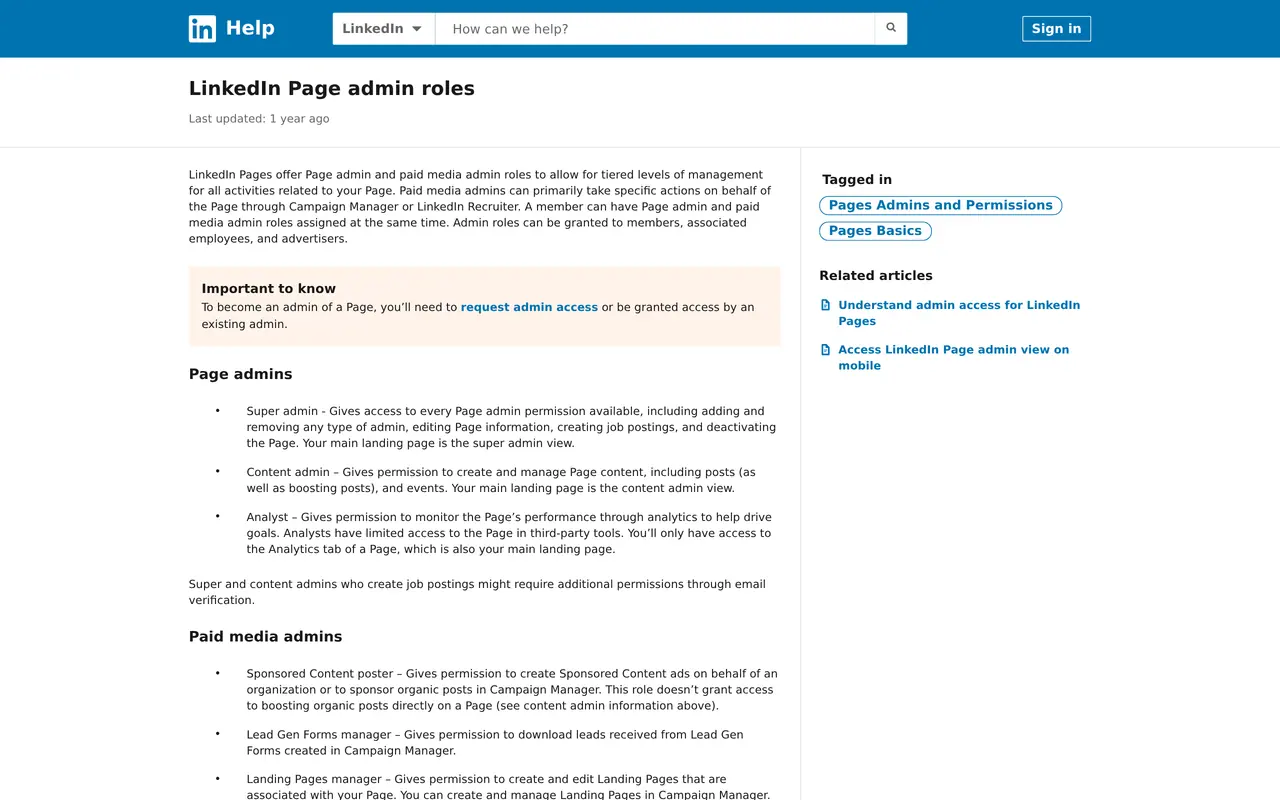
LinkedIn splits the rights into two groups. Page admins work on the page itself. Paid media admins advertise on behalf of your company from Campaign Manager. A person can hold one page admin role at most, but several paid media roles at the same time.
| Role | What that person can do | Give it to |
|---|---|---|
| Super admin | Everything: add and remove admins, edit page details, post jobs, deactivate the page | Two people from your own team |
| Content admin | Write and schedule posts, boost posts, create events, reply as the page | Whoever posts each day, an agency included |
| Analyst | See the Analytics tab only | A director or colleague who wants the numbers |
| Sponsored Content poster | Create ads in Campaign Manager on behalf of the page | Whoever runs your campaigns |
| Lead Gen Forms manager | Download leads from the forms in your ads | Your salesperson or CRM owner |
| Landing Pages manager | Create and edit landing pages in Campaign Manager | Whoever runs your campaigns |
The old curator role is gone, and the pipeline builder role no longer appears in the LinkedIn help article either. If an older tutorial mentions them, skip that part.
Adding an admin, step by step
These are the steps on a computer. The mobile app has the same menus, just buried a little deeper.
Eight clicks to a new admin
- Open the super admin viewGo to your page and click the button to view it as an admin. If that button is missing, you are not an admin.
- Settings, then Manage adminsSettings sits in the menu on the left. Manage admins is underneath, with two tabs.
- Pick the right tabPage admins for people who work on the page, paid media admins for people who advertise.
- Click Add adminNo button? Then you are not a super admin yourself. Ask someone who is for that role.
- Search for the person by nameType the name as it appears on their personal profile and pick the right person from the list.
- Choose the role and savePick a role, click Save, and the new admin sees the page in their own menu straight away.
Why the button or the person does not show up
LinkedIn sets four conditions on who you can add. If one of them fails, the person does not appear in the search list, or you get an error after saving.
| Condition | What to do about it |
|---|---|
| The person is a first, second or third degree connection of yours | Connect first, or let a colleague who shares a connection add them |
| The person follows your page | Ask them to follow the page, then try again |
| Neither the page nor the person has blocked the other | Lift the block in the settings of the page or the profile |
| The person's account has no open policy violation | They have to sort that out with LinkedIn themselves |
Still stuck? LinkedIn suggests verifying your own account, or the account of the person you are adding. A brand new profile with no connections and no photo gets stuck more often.
There is also a cap on the number of admins per page. A small business will not reach it, but it is one more reason to clear out old names.
Giving an agency or freelancer access
An agency or freelancer rarely needs more than content admin. With it they can post, schedule, reply and boost posts, but they cannot add other admins or close the page. If the agency also runs ads, add the Sponsored Content poster role. A second super admin outside your own company is rarely needed, and it is exactly what is hard to get back later.
Weighing up doing it yourself against outsourcing? Read freelancer or agency. We work the same way ourselves: when you hand your LinkedIn management to us, we ask for content admin and the super admin role stays with you.
A Facebook page works differently, with full control, partial access and task access. Read how to add an admin to a Facebook page for that.
Content admin or super admin for an agency
- Post and schedule
- Content adminYes
- Super adminYes
- Boost posts
- Content adminYes
- Super adminYes
- Add or remove admins
- Content adminNo
- Super adminYes, including you
- Change name, logo and details
- Content adminNo
- Super adminYes
- Deactivate the page
- Content adminNo
- Super adminYes
- Risk when the work ends
- Content adminSmall: you remove the role
- Super adminLarge: they can remove you
Give an agency content admin, plus only the ad roles the work needs.
Removing an admin or changing a role
Removing an admin happens on the same screen. Open Manage admins, find the name in the list and choose Remove, or choose Edit to give another role. Only a super admin can do this too. LinkedIn will not let you remove the last super admin: a page always keeps at least one.
When should you remove someone? On the day an employee leaves, just as you close their email account. Put it on the leaver checklist, next to the laptop and the badge. A former employee who is still a super admin can change your page, and nobody notices until a customer mentions it.
How to transfer a LinkedIn company page
LinkedIn has no separate transfer button. You do it in three steps: the current super admin adds the new person as super admin, the new person checks that everything works, and then the old super admin removes themselves. That way there is never a moment without someone holding every right. If nobody needs the page any more, removing it is the other route: see delete LinkedIn company page.
If the old super admin has left or cannot be reached, you can request admin access from the page itself. LinkedIn sends that request to the existing super admins. If nobody answers, the LinkedIn help form is what is left, where you show that you work there with an email address on your company domain. Expect a few days to a few weeks.
Showcase pages keep their own admins
Do you run a showcase page next to your main page, for a brand or a department? It does not inherit the admins. A super admin of the main page does not automatically get access to the showcase page, so add admins there separately. A showcase page that posts nothing for six months goes inactive, and then you have to contact LinkedIn to get it back.
Your own profile next to the page
A company page reaches fewer people than the profiles of the people behind it. Posts by a founder or an employee often get more responses than the same post from the page. So work with both: the page as the fixed place for jobs, news and your work, and your own profile for what you think and learn. What that involves is in personal branding and employer branding. A question about roles on your own page? Send us a message.
What the right roles let you do next
With the roles in order, the page is ready for work. Schedule posts for when your audience reads: the best time to post on LinkedIn differs per sector. Write posts that say something before the fold, and check in our LinkedIn post preview how your first lines look on a phone. Read how the LinkedIn algorithm in 2026 decides who sees your post. Want to know whether people read your posts? Work out your engagement rate.
Planning ads? First see what LinkedIn ads cost and who gets the paid media roles. And fit the page into a wider plan with our social media plan template.
Rights, roles and locked pages
How many super admins does a company page need?
At least two, both from your own team. The page stays reachable when someone leaves, falls ill or loses their account.
Can I add an admin in the app?
Yes, the menus are in the LinkedIn app as well, under your page and its settings. On a computer you see which roles exist at a glance.
Does the new admin get a notification?
Yes, LinkedIn tells the person they have a role on the page, and the page appears in their menu.
Can an analyst see my messages?
No. An analyst sees the Analytics tab only: no messages, no draft posts and no settings.
Does an admin have to work for my company?
No. LinkedIn gives roles to members, employees and advertisers. An agency or freelancer can be an admin without your company in their work history.